
 4 min
4 minWhat you’ll learn in this article
Integrating Pipedrive with Mailchimp is more than just connecting two apps. It’s about aligning your sales and marketing strategies in a smart, automated way. The result? Increased productivity, highly effective email campaigns, and a lead management system that ensures no opportunity gets lost.
Bringing together a CRM and an email marketing platform is a no-brainer, and the Pipedrive Mailchimp integration is the perfect example of how powerful that connection can be.
It’s a great fit for any business — even small ones that don’t have the budget for an entire stack of tools.
Sounds too good to be true? But it is. 😉
In this article, we’ll show you how to integrate Mailchimp with Pipedrive, using Pluga.
Watch this integration:
Why integrate Mailchimp to Pipedrive?
Few partnerships are more powerful than sales and marketing working in sync, and that’s exactly what the Mailchimp Pipedrive integration makes possible. When both teams are aligned, they save time and focus on what really matters: results.
For example, when a lead reaches the Proposal stage in Pipedrive, they can automatically be added to a Mailchimp email campaign designed to help close the deal or nurture the relationship. This means your communication will be aligned with the lead’s stage in the pipeline, making it more relevant and effective.
That’s the heart of inbound marketing: sending the right content to the right person at the right time.
How to set up the Pipedrive Mailchimp integration: 8 quick steps
Closing deals is great. But tracking your pipeline and triggering actions at the perfect moment? That’s even better. Imagine this: every time a deal moves forward in Pipedrive, the contact is automatically updated in Mailchimp and enrolled in the right email sequence.
That’s exactly what the Pipedrive integration with Mailchimp lets you do — without exporting or importing anything manually.
And with an automation platform like Pluga, it only takes a few minutes. 😉
Ready? Let’s walk through it.
You’ll need:
- Choose the apps, trigger, and action
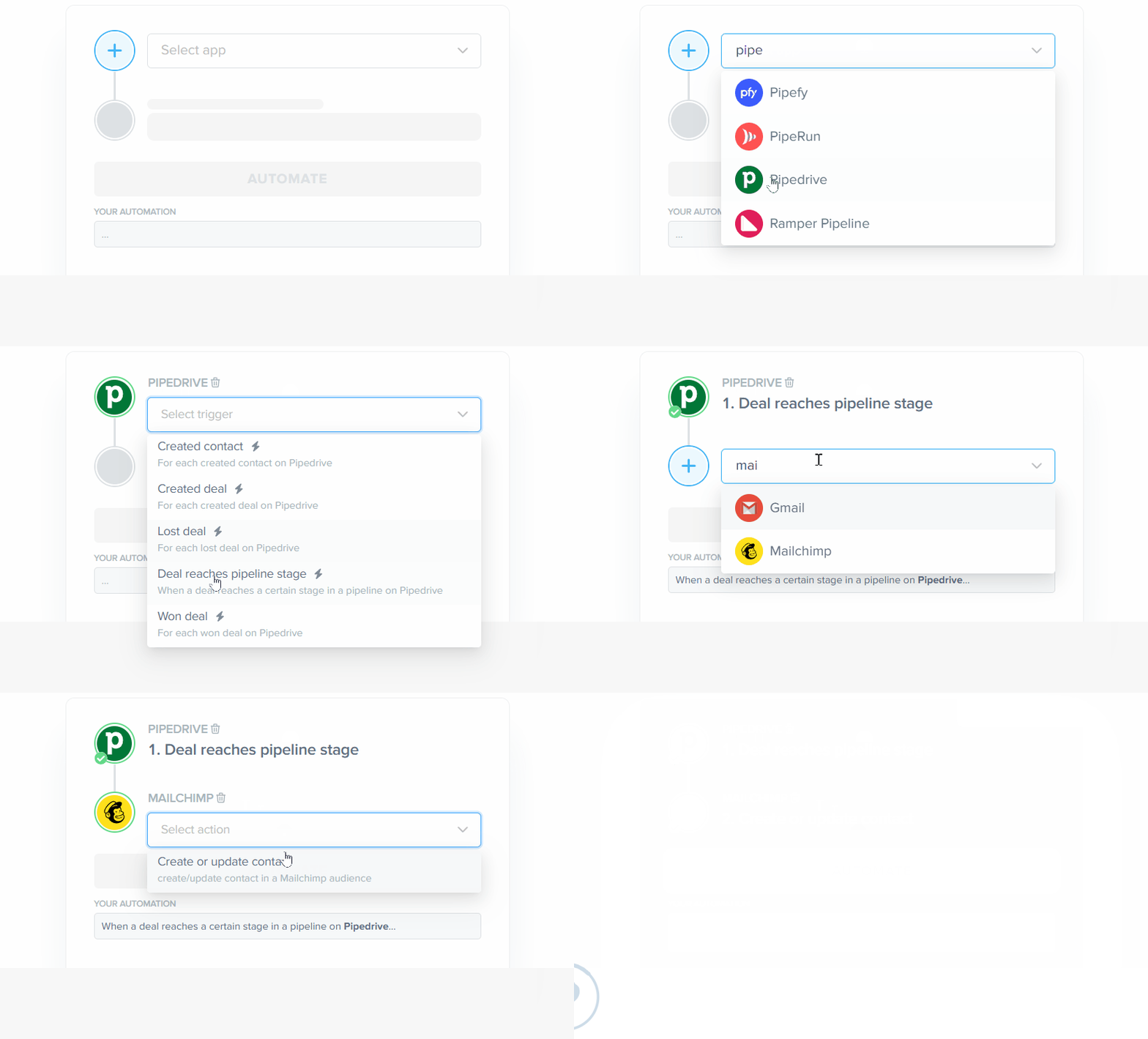
After signing into Pluga, select Pipedrive as your source app and pick the trigger “Deal reaches pipeline stage.” Then, choose Mailchimp as the destination app and select the action “Create or update contact.”

Click “Automate” to continue. - Connect your Pipedrive account
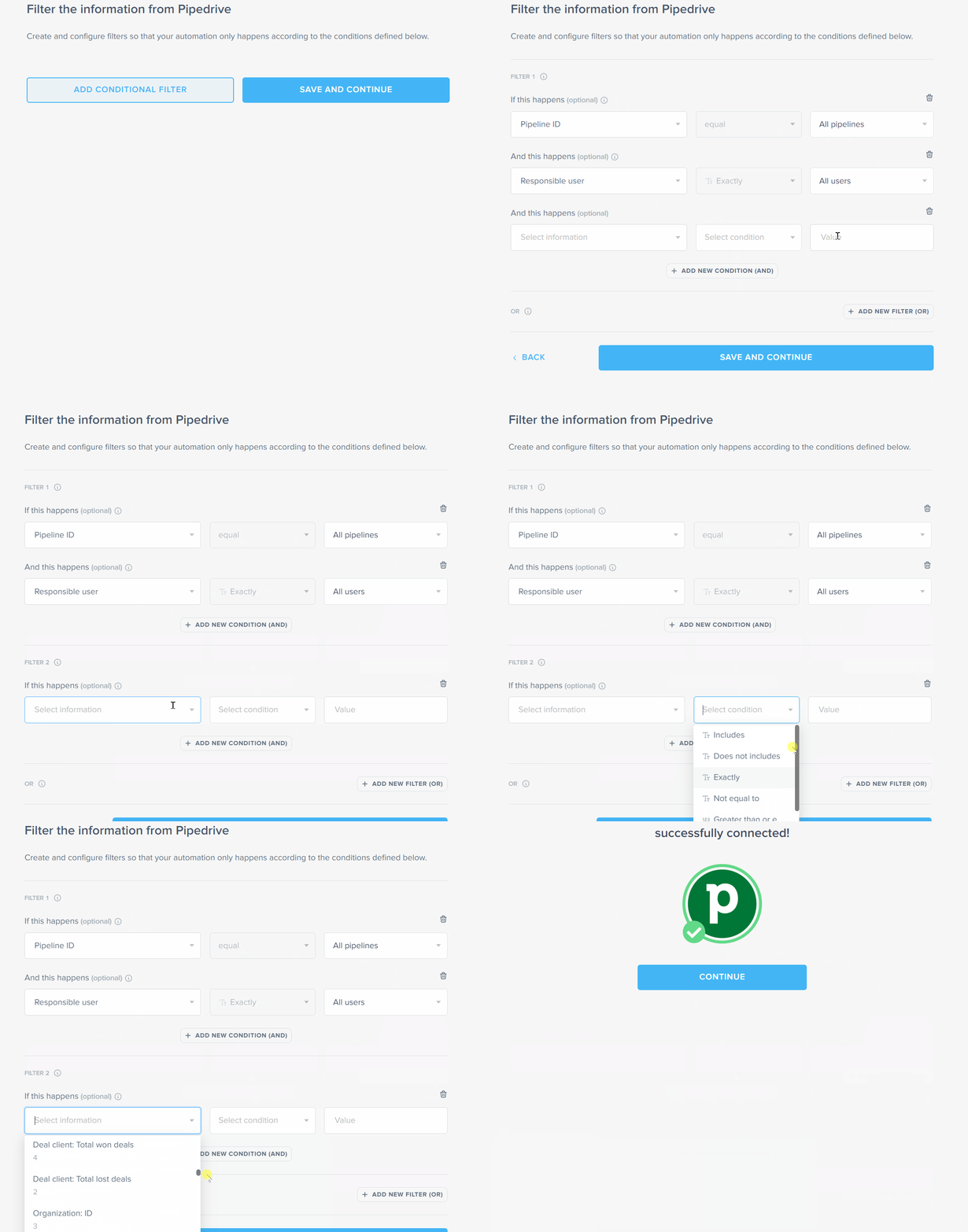
If this is your first time connecting Pipedrive to Pluga, you’ll need to authorize access. Click “Connect new account” and follow the short tutorial to find your API key. Paste the key, click “Save and continue” and move on to the next step.
- Set up your Pipedrive trigger
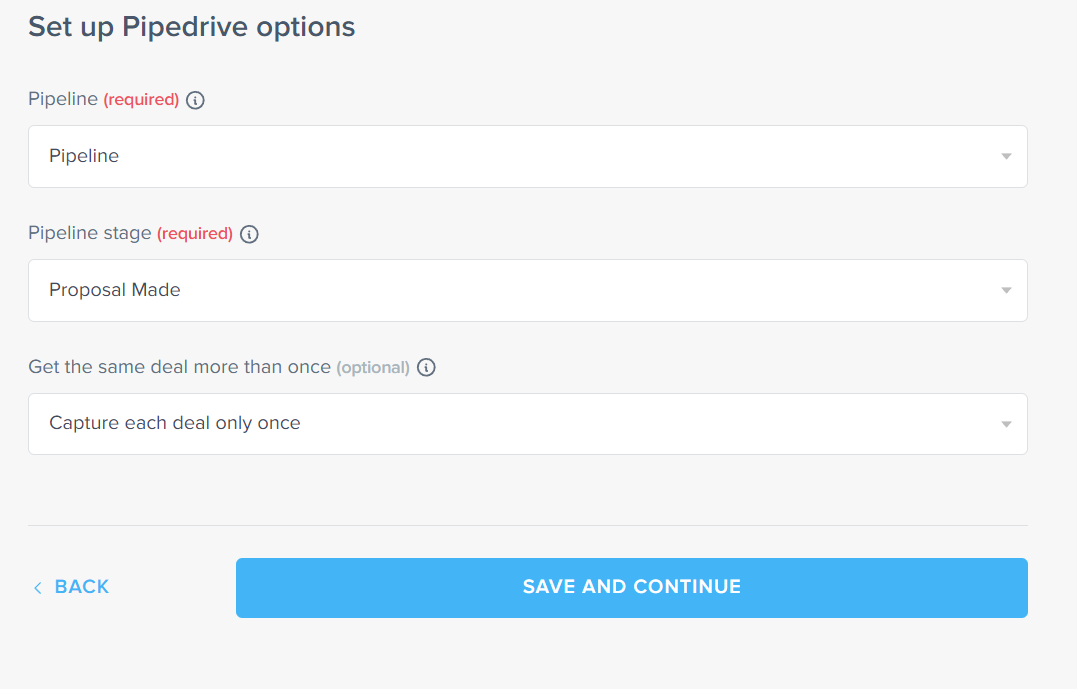
Choose the pipeline and specific stage that will activate the integration. For example: when a lead reaches the Proposal Sent stage, their contact info is sent to Mailchimp.
You can also decide whether this action should trigger once or multiple times.
- (Optional) Add custom filters
Want more control over what gets sent to Mailchimp? Use filters to define specific rules for the data being transferred. This is optional so you can skip it if you want to keep things simple.

- Connect your Mailchimp account
Almost there! If this is your first time using Mailchimp with Pluga, click “Connect new account” If you’ve already connected it, just select it from the list.
Make sure the setup looks right before moving forward. - Select your Mailchimp audience
Choose which audience in Mailchimp you want to use for this integration. This is where your new or updated contacts will go.
- Customize the data mapping
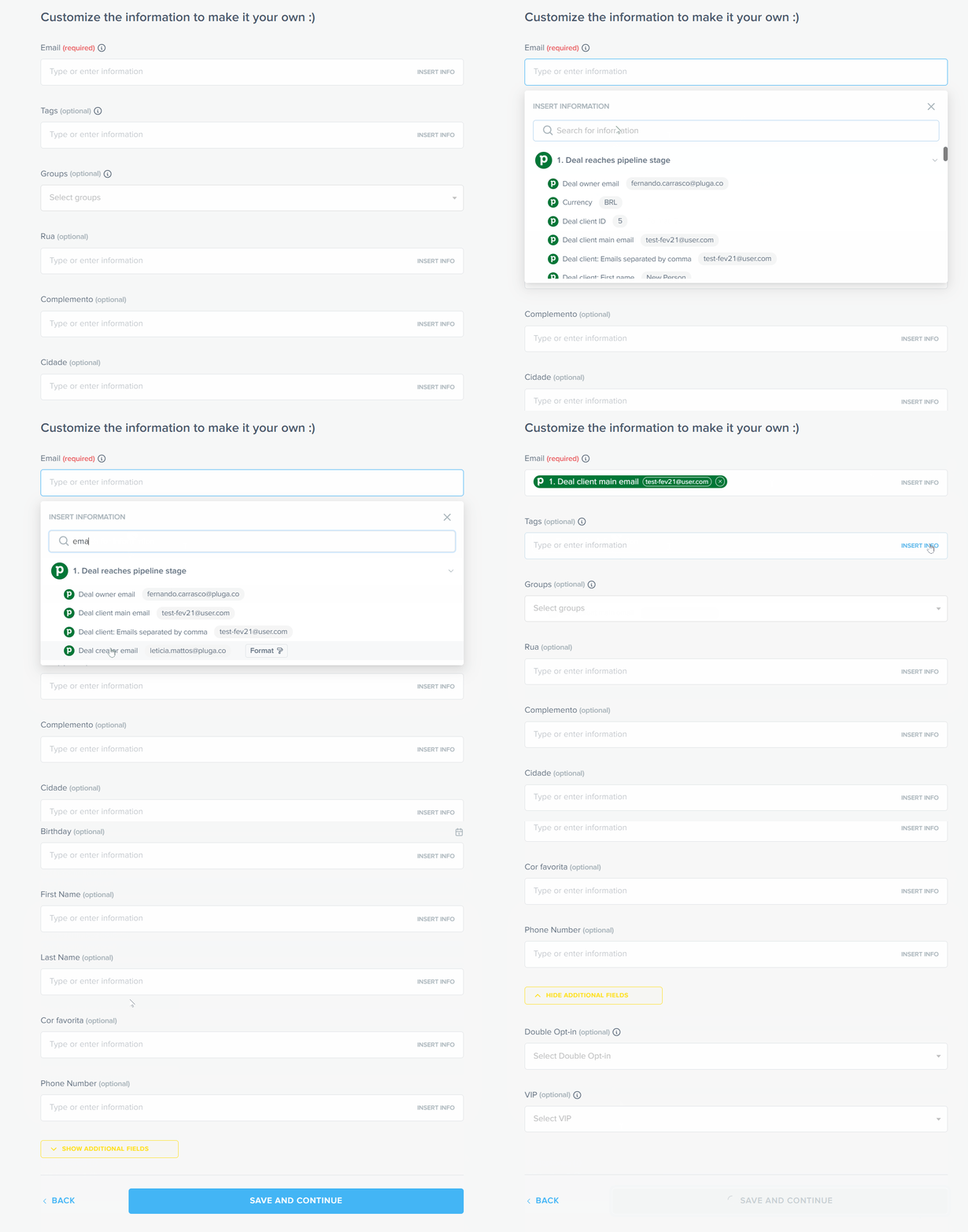
Since this is an email marketing integration, mapping the email field is required. You can also map other optional fields like name, phone number, or company to make your automation more accurate.
Click “Save and continue” once everything’s ready. - Finalize your automation
You’re all set! click “Finish automation” and your workflow is live. ✨
From now on, whenever a lead reaches the specified stage on Pipedrive, their contact will be added or updated on Mailchimp.
What are the benefits of this integration?
You already know why it’s smart to sync a CRM like Pipedrive with a marketing platform like Mailchimp. But what will this integration actually change in your daily routine?
Here are some real-world benefits:
- More personalized and segmented campaigns: set up automations so that leads at different stages of the funnel receive tailored emails. This boosts campaign performance by making your emails more relevant to each contact.
- Always up-to-date contact info: any change in Pipedrive will reflect in Mailchimp (and vice versa). This prevents sending emails to outdated or duplicate contacts — and improves deliverability.
- No more forgotten leads: with the Mailchimp Pipedrive integration in place, every lead that enters your CRM is automatically added to a communication flow. This increases conversion rates by making sure no opportunity is left behind.
Pipedrive and Mailchimp are just the beginning
That’s the beauty of automation, and you can expand it even further by connecting apps like Google Sheets, Typeform, and dozens of other ones that help you gather and manage customer information.
Now that you’ve seen the power of connecting Pipedrive and Mailchimp, it’s time to explore other integrations that can support your business growth.
Check out all the available workflows on the Pipedrive and Mailchimp integrations page.
Quick answers to common questions:
Does Pipedrive integrate with Mailchimp?
Yes! While there’s no built-in native integration, you can use platforms like Pluga to connect them easily without writing code.
Can I export contacts from Pipedrive to Mailchimp automatically?
Absolutely. Once you’ve set up the automation, any new contacts or updates in Pipedrive can be sent straight to a Mailchimp list automatically.
Can I trigger Mailchimp campaigns based on activity in Pipedrive?
Yes! You can set up flows like sending a welcome email when a lead advances in the pipeline, or starting a nurturing sequence after a purchase.